

 WooCommerce Pro Partner
 WordPress Pro Partner



















Ecommerce Website Maintenance Checklist: What to Check Daily, Weekly, Monthly and Yearly
Ecommerce website maintenance is the regular work that keeps an online store taking orders, stays secure and loads quickly. It covers updates, backups, test orders, error logs, speed checks and renewals. This checklist sets out what to check daily, weekly, monthly, quarterly and yearly on a WooCommerce store, and what to do when a check fails. Most of it also applies to other platforms.
In this guide
What ecommerce website maintenance covers
A store changes every day even when nobody edits it. Orders come in, stock moves, plugins release new versions and payment providers change their rules. Basically, ecommerce website maintenance is a routine for catching problems before a customer does.
It falls into five areas:
- Sales: orders, payments and emails are working.
- Security: software is patched and only the right people have access.
- Recovery: backups run and can be restored.
- Performance: pages stay fast and the server can handle busy periods.
- Admin: domains, certificates, licences and compliance stay current.
The timing matters more than it used to. Patchstack counted 11,334 new vulnerabilities in the WordPress ecosystem in 2025, up 42% on 2024, and 91% of them were in plugins. Between 28 October and 4 November 2026, WordPress 7.1.4 and WooCommerce 11.2.2 both shipped security fixes.
If you want the case for doing this work, our older post on why you need to maintain your ecommerce website covers it. This guide covers how to do it.
Build your own maintenance schedule
Not every ecommerce website maintenance task suits every store. A store with a POS connection needs checks that a small catalogue store does not. Answer the questions below to get a schedule for your store, then tick off tasks as you go or copy the list into your task manager.
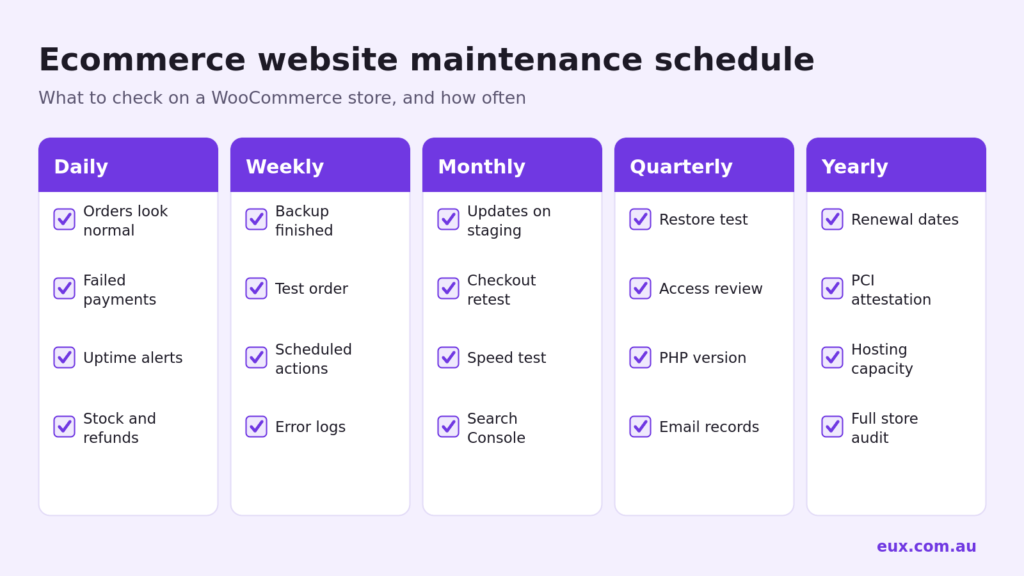
Daily ecommerce website maintenance checks
These ecommerce website maintenance checks take a few minutes and are mostly part of running the store. WooCommerce’s own maintenance checklist lists stock and refunds as daily jobs.
- Orders: compare today’s orders with a normal day. Look for orders stuck in Pending payment.
- Failed payments: a sudden run of failed orders can be a card testing attack.
- Alerts: read uptime and error alerts from your host or monitoring service.
- Integrations: if the store connects to a POS or ERP, read the sync log. Our ATRIA connector has a sync log and a Sync Now button for this reason.
Weekly checks
These catch the faults that do not show up on the storefront.
- Backups: confirm the latest one finished. The WordPress backup guide says you need both the database and the files, and suggests daily backups for busy sites and at least 3 to 5 recent copies in different locations. WooCommerce recommends real-time backups, because order data changes constantly.
- Test order: WooCommerce suggests using sandbox mode on staging, or a full-discount coupon or private product on the live site. Confirm the order email arrives. One recent support job of ours, for a seafood retailer, was fixing order emails through Postmark, and a test order is how you find that kind of fault.
- Scheduled actions: go to WooCommerce, Status, Scheduled Actions and filter for failed and past-due items. These background tasks handle jobs such as subscription renewals, so a stalled queue can affect sales without any visible error.
- Error logs: read the fatal-errors log under WooCommerce, Status, Logs. Also check Tools, Site Health.
- Security: check advisories for your plugins and look for administrator accounts you do not recognise. Our guide to checking for hidden admins and webshells gives the steps. If fake accounts are building up, see how to remove users without orders.
Weekly is a minimum for security news. Patchstack reports a weighted median of 5 hours to mass exploitation for heavily targeted vulnerabilities, and 46% of vulnerabilities had no developer fix at public disclosure. A web application firewall with virtual patching helps cover that gap.
Monthly ecommerce website maintenance tasks
The update routine
WooCommerce’s update guide says a monthly cadence works for most stores, and that you should update sooner if a release includes a security fix. It also says not to test updates directly on the production site. The routine is:
- Take a fresh backup.
- Copy the live site to staging and update WooCommerce, extensions, payment gateways and the theme together.
- Test product pages, cart, checkout, payments, shipping, tax, order emails and any extension features.
- Check that each extension’s tested-up-to version covers your new WooCommerce version.
- Apply the updates to the live site in a quiet period, and run any database update WooCommerce prompts for.
- Place a test order and check the admin for notices and failed scheduled actions.
Stores with custom code or integrations need more testing. Point the staging site at a test environment on the POS or ERP side, so test orders do not reach the live system. Our post on what to test before WooCommerce 11.3 shows the kind of change that affects integrations.
Speed and search checks
- Test the home, category, product and checkout pages. Google’s Core Web Vitals targets are LCP of 2.5 seconds or less, INP of 200 milliseconds or less and CLS of 0.1 or less, at the 75th percentile of page loads.
- Check Search Console for indexing errors and pages that have lost clicks.
- Delete plugins and themes you no longer use, so they cannot become a security risk.
Quarterly checks
- Restore test: restore a recent backup to a staging site. A backup has not been proven until it has been restored.
- Access review: remove old staff accounts, agency logins and unused API keys.
- PHP version: PHP 8.2 stops receiving security fixes on 31 December 2026, and PHP 8.1 and older are already end of life. WordPress recommends PHP 8.3 or newer. Your version is shown under WooCommerce, Status. Test the upgrade on staging first.
- Template overrides: if your theme overrides WooCommerce templates, the Templates section of the system status report shows which files are outdated.
- Email records: check SPF, DKIM and DMARC for the domain that sends your order emails. See also our SMS order notification guide if you want a second channel.
- Store settings: review shipping rates, tax and payment settings. Australian stores should confirm their checkout fees reflect the card surcharge changes from 1 October 2026.
- Abandoned plugins: look for plugins with no recent updates and plan replacements.
Yearly checks
- Renewals: list the renewal dates for the domain, SSL certificate, plugin licences and hosting, with who pays each one.
- PCI: Stripe’s security guide says a business accepting payments must annually attest to its PCI compliance. Check what your own provider requires.
- Hosting capacity: review it before your busiest period. When Jaggards’ traffic tripled in a matter of days, we scaled the Kinsta plan, tuned Redis and monitored worker queues and API response times throughout the surge.
- Policies: review the privacy policy, terms, and shipping and returns pages.
- Full audit: review the whole store, including conversion, speed, SEO and tracking. See what an ecommerce audit checks.
What to do when a check fails
- An update breaks the store: WooCommerce’s guide says to keep the site out of checkout, restore from backup if needed, and troubleshoot on staging before trying again.
- Scheduled actions are failing: open the log entry for the failed action. If actions are stuck as past-due, check whether WP-Cron is running. WooCommerce points to the WP Crontrol plugin for this, and to replacing WP-Cron with a real cron job.
- Payments are failing: check the gateway’s dashboard and logs first, then check whether failed orders come from a small number of IP addresses or card numbers.
- You find an unknown admin or unfamiliar files: treat it as a compromise. Keep a copy of the logs, change passwords and follow a hacked site repair process rather than only deleting the account.
Keep a simple ecommerce website maintenance log: the date, who did it, what changed and what failed. This makes it much quicker to work out which change caused a later fault.
Ecommerce website maintenance FAQ
How often should ecommerce website maintenance be done?
Check orders and alerts daily, backups and logs weekly, and apply updates monthly. WooCommerce says a monthly update cadence works for most stores, and that security fixes should be applied sooner. Busier stores and stores with integrations need more frequent checks.
Can I turn on automatic updates for WooCommerce and plugins?
You can, but we do not recommend it for plugins that affect checkout, payments or integrations, because a faulty update can stop orders with nobody watching. We test those on staging first. Automatic updates can suit simple plugins on smaller stores, as long as backups and uptime alerts are in place.
Do small stores need a staging site?
Yes, if the store takes orders. WooCommerce’s guide says not to test updates on production. Many managed WordPress hosts include staging, including Kinsta, which we use for client hosting.
What is the difference between hosting and maintenance?
Hosting runs the server and often includes server-level backups and security. Maintenance covers what happens inside the store: testing and applying updates, test orders, reading logs and fixing faults. Check what your host includes, as many tasks on this list stay with you or your developer. Ecommerce website maintenance is usually a separate service.
What should I do before Christmas and other peak periods?
Finish non-urgent updates and changes several weeks ahead, review hosting capacity, run a restore test and place test orders on every payment method. During the peak, only apply urgent fixes such as security patches, and still test them on staging where you can.
How we can help
EUX Digital is a Sydney WooCommerce agency and one of three WooCommerce Pro Partners in Australia. If you would rather hand your ecommerce website maintenance over, or want someone to check where your store stands:
- Support and maintenance: updates tested on staging, backups, security and fixes, with set hours each month and a Sydney team you can call.
- Store health check: a $399 check of what is broken or costing sales.
- Managed hosting: fast, secure hosting for WooCommerce.
Please contact us or call (02) 9121 6234 and let us know what you need.
Sources
- How to update WooCommerce (WooCommerce)
- The essential WooCommerce maintenance checklist (WooCommerce)
- Understanding the WooCommerce system status report (WooCommerce)
- WordPress backups (WordPress.org)
- Supported PHP versions (PHP.net)
- State of WordPress Security in 2026 (Patchstack)