

 WooCommerce Pro Partner
 WordPress Pro Partner

















WordPress 7.1.4 Security Release: How to Patch the Upgrader Flaw Safely
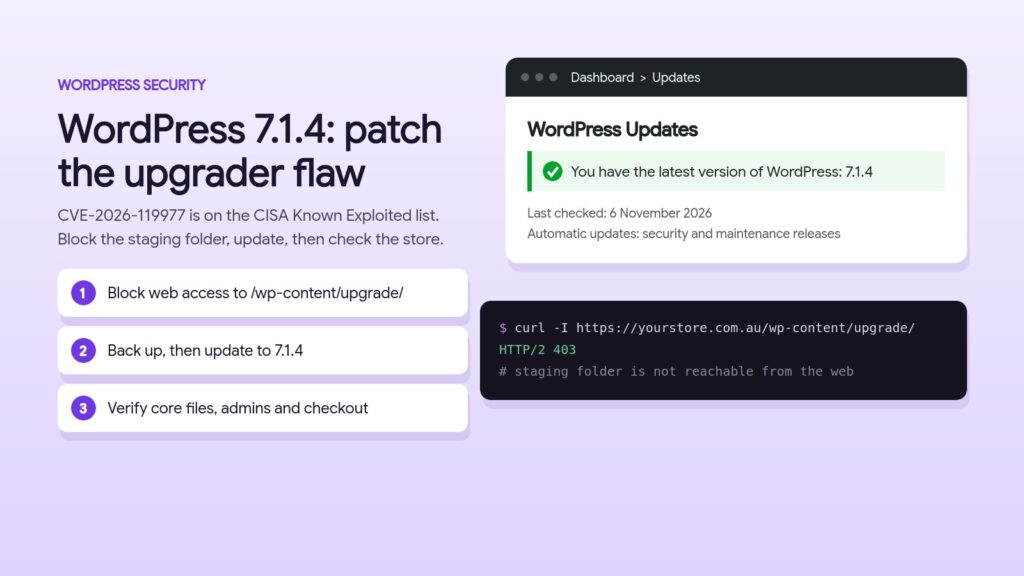
WordPress 7.1.4 is a security release published on 28 October 2026. It fixes 13 issues, including CVE-2026-119977, a weakness in the core upgrade process that the US Cybersecurity and Infrastructure Security Agency (CISA) added to its Known Exploited Vulnerabilities catalog on 3 November. This guide explains what the flaw is, why the update itself is the risky moment, and the steps we follow to apply WordPress 7.1.4 on a WooCommerce store and check it afterwards.
In this guide
What WordPress 7.1.4 fixes
The official WordPress 7.1.4 announcement lists 13 security fixes and recommends updating immediately. In short:
- A weakness in the upgrade process that can lead to remote code execution during the upgrade window (CVE-2026-119977, reported by Umut Bayram).
- Several stored cross-site scripting (XSS) fixes, covering block markup, the Interactivity API, Customizer selective refresh, the Categories, Playlist, Image and comments pagination blocks, privacy data removal requests and user login fields.
- A stored denial of service issue in the Interactivity API.
- Unpublished Customizer changesets that visitors could discover without logging in.
- Notes that privileged users could read without edit access to the attached post.
- Updated bundled root certificates after the eMudhra root certificate was revoked.
The upgrader issue is the one that needs the most attention. It does not require a login, and CISA has confirmed it is being exploited.
How the upgrader flaw works
When WordPress updates its core files, it downloads the new release and extracts it into a temporary folder under wp-content/upgrade/ before copying the files into place. Picus Security’s technical analysis explains the problem in three parts:
- The temporary folder name can be predicted, so an attacker can work out where the extracted files are.
- The extracted package contains WordPress’s own setup script. That copy cannot see the live wp-config.php file, so it behaves like a fresh install and accepts new database details from anyone who reaches it.
- When the update copies the files into place, a wp-config.php written into the temporary folder can overwrite the live one. The site then connects to a database the attacker controls, and the attacker can create an administrator account and upload a plugin to run their own code.
The attack only works while an update is running, which is why the risk sits in the update itself. CISA describes CVE-2026-119977 as a time-of-check time-of-use race condition caused by predictable, web-accessible staging paths in full-package core upgrades. Picus rates it CVSS 8.1.
WordPress 7.1.4 fixes it in three ways. It adds a long random suffix to the staging folder name, it keeps the index.php file that stops the folder being listed, and it refuses to copy wp-config.php during a core update.
Which sites are affected
- WordPress 4.7 to 7.1.3 are affected. WordPress 7.1.4 is the fix for the 7.1 branch, and the WordPress team says security fixes have been backported to every branch down to 4.7.
- Sites older than 4.7 receive no fix and need a full upgrade to a supported version.
- The risk applies during full-package core updates, including automatic background updates.
One detail is easy to miss. According to Picus, the first update from an unpatched version to 7.1.4 still runs the old updater code, so the staging path is still predictable during that update. The new code blocks the wp-config.php overwrite, but an attacker who reaches the temporary copy could still run code with the web server’s permissions before clean-up. That is why we block web access to the staging folder before updating, not after.
CISA set US federal agencies a deadline of 6 November 2026 to deal with it. The deadline does not apply to private businesses, but it shows how seriously the agency treats the flaw.
How to apply WordPress 7.1.4 safely
This is the order we follow for the WooCommerce stores we look after.
1. Check your current version
Go to Dashboard, Updates, or Tools, Site Health, Info. If it already shows WordPress 7.1.4 or later, skip to the checks in the next section.
2. Block web access to wp-content/upgrade/
Between updates this folder should only hold an index.php file, and nothing in it needs to be reachable from a browser. Block it at the web server, so the rule still applies while the staged installer is running. Patchstack and Picus both recommend this step.
On Nginx:
location ^~ /wp-content/upgrade/ {
    deny all;
}
On Apache, add this line to the root .htaccess file, above the WordPress rewrite block:
RedirectMatch 403 ^/wp-content/upgrade/Do not put an .htaccess file inside wp-content/upgrade/ itself. The unpatched updater empties that folder before extracting, so the file would be deleted. On managed hosting where you cannot edit the server configuration, ask your host to apply the rule or confirm it is already in place.
3. Confirm the block works
curl -I https://yourstore.com.au/wp-content/upgrade/You want a 403 response. When we checked our own site on 6 November 2026 (Kinsta behind Cloudflare), it was already running WordPress 7.1.4 and this request returned 403.
4. Take a backup you can restore
Before installing WordPress 7.1.4, take a fresh backup of the files and database, and make sure you know how to restore it. On a busy store, pick a quiet time so a restore would lose as few orders as possible.
5. Run the update
Use Dashboard, Updates, Update Now, or let the automatic background update run. Picus notes that the WP-CLI command wp core update uses the same extraction path, so it is not a safer route on its own. If you manage the server and want to avoid the staging folder entirely, you can extract the release outside the web root, copy the core files across without touching wp-content or wp-config.php, then run the database update.
If you are also applying the WooCommerce 11.2.2 security update this week, update WordPress core first, then WooCommerce, and place a test order after each.
Checks to run after the update
A patched version stops new attempts. It does not prove the site was clean before the update. Once WordPress 7.1.4 is installed:
- Confirm the Updates screen shows 7.1.4, and clear any page cache so you are not looking at an old copy.
- Run wp core verify-checksums if you have WP-CLI access. It compares core files against the official release. It does not check plugins, themes or uploads.
- Open wp-config.php and check that the database name, user and host are the ones you expect.
- Search the access logs for requests to setup-config.php under wp-content/upgrade/. Any hit is worth investigating.
- Review administrator accounts with wp user list –role=administrator, or under Users filtered by Administrator. Our guide to finding hidden admin users and webshells explains how attackers hide accounts from that screen.
- Look for plugins nobody installed and for PHP files in the uploads or upgrade folders.
- Place a test order, then check order emails, stock levels and any POS or ERP sync.
If anything looks wrong, keep a copy of the logs and files before cleaning up, so you can work out what happened. If the server is also running an outdated PHP version, read our PHP2Shell guide, because a fully updated WordPress site can still be exposed through PHP itself.
Patch checker for your site
Enter your WordPress version and answer two questions to see whether it includes the WordPress 7.1.4 fix and which steps apply to your site. It runs in your browser and nothing is sent anywhere.
FAQ
Is WordPress 7.1.4 safe to install on a WooCommerce store?
Yes. It is a security release on the current 7.1 branch, not a feature release. Take a backup first and place a test order afterwards, as you would for any update.
My site already updated automatically. Do I still need to do anything?
Your site is now protected from new attempts, but the first update from an unpatched version could still be reached while it ran. Block wp-content/upgrade/ for future updates and run the checks in this guide: core checksums, the database details in your config file, administrator accounts and access logs.
Does a security plugin protect against CVE-2026-119977?
Not fully. The attack targets the temporary installer, which runs outside the normal WordPress load, so a firewall that runs as an ordinary plugin will not see those requests. Wordfence recommends its Extended Protection mode for this. A server-level block on wp-content/upgrade/ and the update itself are the reliable fixes.
What if my site runs an old WordPress version?
Fixes were backported to every branch from 4.7 onwards, so update to the latest release on your branch as a minimum. Sites older than 4.7 get no fix and need a full upgrade, which is best done on a staging copy because older themes and plugins may not support current WordPress and PHP versions.
How do I know if my site was compromised?
Look for requests to setup-config.php under wp-content/upgrade/ in your access logs, administrator accounts nobody created, plugins nobody installed, and changed database details in your config file. If you find any of these, keep a copy of the evidence and get help before cleaning up.
How we can help
We look after WordPress and WooCommerce stores on managed hosting, including core, plugin and PHP updates. If you are not sure whether your store is on WordPress 7.1.4 or a patched branch release, or the checks above turned up something odd, contact us and we will take a look.
For a wider review of your store's security, performance and checkout, see our ecommerce audit.
Sources
- WordPress.org: WordPress 7.1.4 security release
- CISA: Known Exploited Vulnerabilities catalog (CVE-2026-119977)
- Picus Security: CVE-2026-119977, when updating WordPress becomes the vulnerability
- Pantheon: WordPress 7.1.4 release note
- Webhosting Today: hosts can block the WordPress update flaw at the web server