
How to Stop Gmail Including Previous Emails in Your Reply
Every time you reply in Gmail, the entire conversation gets quoted underneath your message, again. On a long thread, a one-line answer can go out with sixty old emails attached below it, and the person reading it has to scroll past all of them to find what’s new.
Quick answer
Gmail has no setting to turn this off. To stop previous emails going out with your reply, click the ••• at the bottom of the reply box, select the quoted text (from “On … wrote:” down) and press Delete. Or install ThreadTrim, a free Chrome extension that does it for you on every reply.
Why Gmail adds the whole thread to your reply
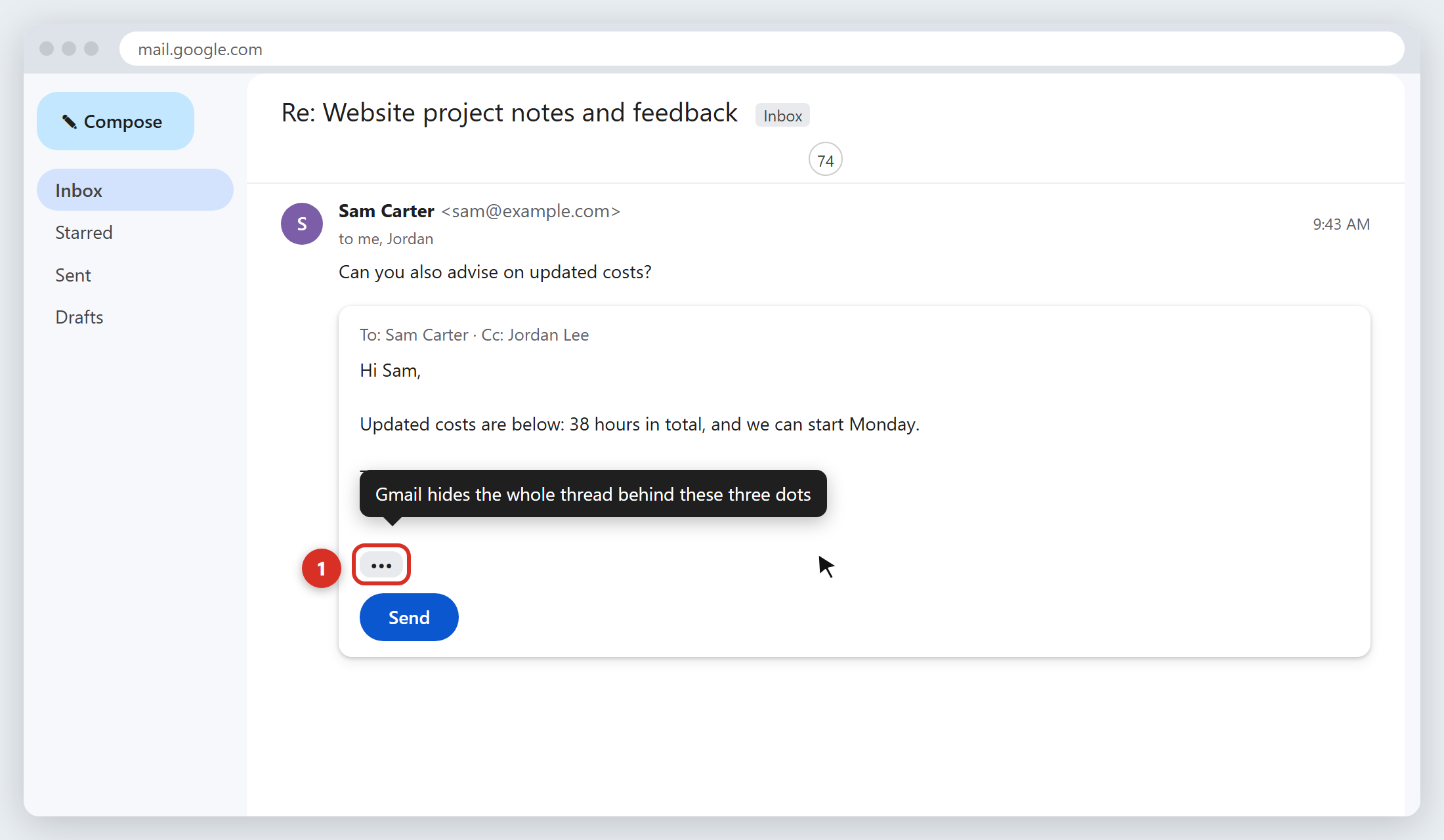
When you click Reply, Gmail copies the message you’re answering, and everything quoted inside it, into your draft. It then collapses that copy behind a small three-dot button at the bottom of the reply box. Hover over it and Gmail calls it “Show trimmed content”.
That’s the trap. The quoted history is hidden from you while you write, but it’s still part of the email. When you hit Send, it goes out in full. In a thread with a lot of back-and-forth, each reply carries every previous reply, so the emails get longer and longer while the new part stays one line.
Gmail hides this quoted text in the recipient’s inbox too, as long as it recognises the format. It often doesn’t: replies from Outlook users use a different quoting style (“From / Sent / To / Subject”), so Gmail shows the whole history expanded. That’s why some threads look fine and others turn into a wall of old emails.
Method 1: Delete the quoted text manually (3 clicks)
- Click Reply and write your message as usual.
- Click the ••• at the bottom of the reply box. The quoted thread expands.
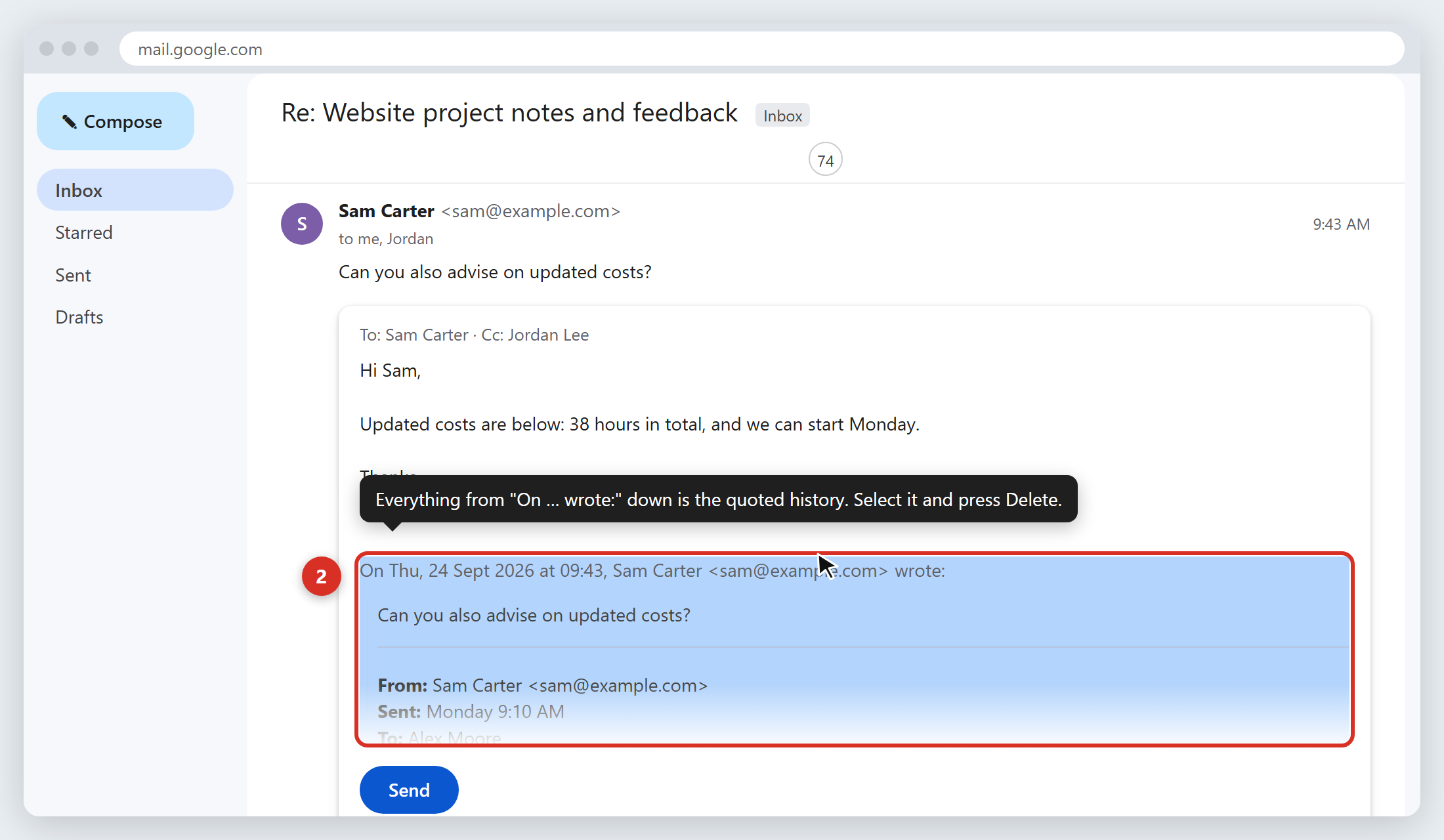
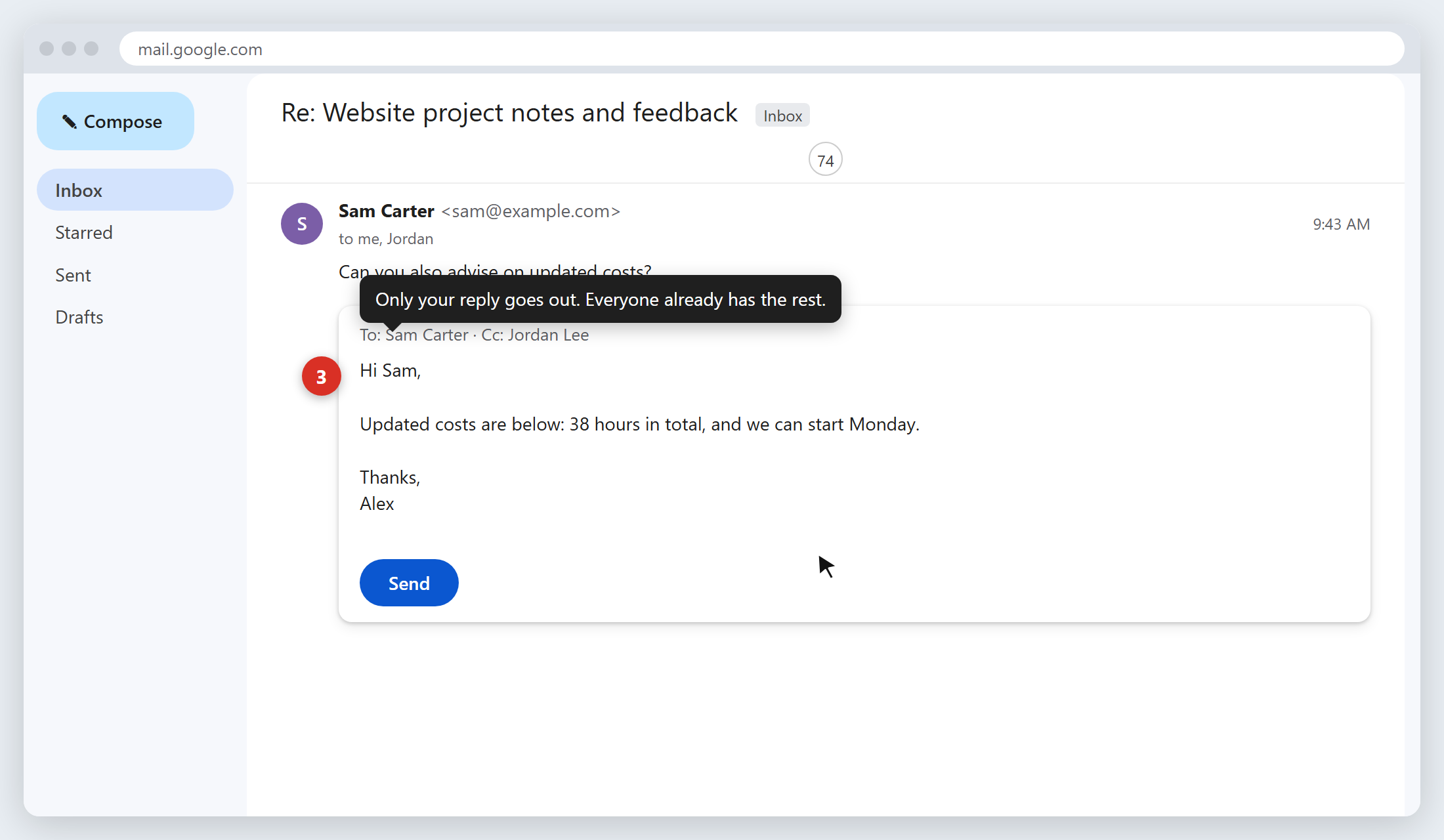
- Select everything from “On … wrote:” down and press Delete. Then send.
Method 2: The keyboard shortcut
If you’d rather not reach for the mouse: as soon as the reply box opens, press ↓ (down arrow) until the cursor lands on the ••• block, then press Backspace. The entire quoted thread is removed in one go, without expanding it.
It works, but it’s easy to overshoot, and you still have to remember to do it on every reply. Most people do it for a week and then stop.
Method 3: Remove it automatically with ThreadTrim
ThreadTrim is a free Chrome extension for Gmail that does the three steps above for you. When you hit Reply, it removes the old quoted emails before you send. A small bar tells you what it removed, with an Undo if you need the full history this time.
- Works however you reply: the Reply button, keyboard shortcuts, or a pop-out window
- Recognises quoted replies from the most common email apps, not just Gmail
- Leaves forwards alone, and leaves short threads alone
- Runs entirely in your browser. No account, no servers, nothing is sent anywhere
- Free for 100 trimmed replies a month
Stop sending the whole conversation.
Add ThreadTrim to Chrome (free)
Add ThreadTrim to Chrome (free)
Made by us at EUX Digital after one client thread hit 79 emails. More about ThreadTrim
Is there a Gmail setting for this? (No, and here’s what doesn’t work)
People look for a setting because it feels like there should be one. There isn’t. The options that sound related don’t do what you’d hope:
- Conversation view off (Settings → General) changes how messages are grouped in your inbox. It has no effect on what’s quoted in the replies you send.
- Default reply behaviour only switches between Reply and Reply all.
- Plain text mode changes the formatting of your email. The quoted text is still included.
So the choice is manual (Method 1 or 2) or automatic (Method 3).
Does deleting the quoted text break the thread?
No. Email apps group messages into conversations using hidden headers (Message-ID, In-Reply-To and References), not the quoted text in the body. Your trimmed reply lands in the same thread for everyone, in Gmail, Outlook and everything else.
And nobody loses anything. Every person on the thread already has every earlier message in their own inbox. The quoted copy was only ever a duplicate.
Why it’s worth doing
- Your reply gets read. One line at the top of a short email is noticed. One line at the top of sixty quoted emails is easy to skim past.
- Changes don’t get missed. Long quoted chains make it hard to see what’s new, which is how people end up answering last week’s question.
- The thread stops growing. Once your replies are short, the other person’s replies are short too, because there’s nothing left to quote.
What about the Gmail mobile app?
In the Gmail app on iPhone and Android, the quoted text is collapsed at the bottom of your reply, much like on desktop. Tap it to expand it, select the quoted history and delete it before sending. There’s no automatic option on mobile: browser extensions like ThreadTrim only run in Gmail on desktop Chrome (and other Chromium browsers such as Edge and Brave).
Frequently asked questions
Is there a Gmail setting to stop including previous emails in replies?
No. Gmail has no setting that stops it quoting the previous messages under your reply. Turning off Conversation view only changes how your inbox is displayed, not what is sent. You have to delete the quoted text in each reply, or use an extension that does it for you.
What does “Show trimmed content” mean in Gmail?
When you reply, Gmail collapses the quoted history behind a small three-dot button labelled “Show trimmed content”. It’s hidden from you while you write, but it’s still part of the email and is sent to the recipient.
Does deleting the quoted text break the email thread?
No. Threads are grouped by hidden headers, not by the quoted text. Your reply stays in the same conversation for everyone.
Will the recipient still be able to see the earlier emails?
Yes. Everyone on the thread already has every earlier message in their own inbox. Removing the quoted copy from your reply only stops it being sent again.
Can I remove quoted text in the Gmail mobile app?
Yes, manually. Tap the collapsed quoted text at the bottom of your reply to expand it, then select and delete it. Extensions such as ThreadTrim work in Gmail on desktop Chrome only.
Why does the quoted text in my thread look different from other people’s?
Different email apps quote in different styles. Gmail writes “On … wrote:” above a quoted block; Outlook writes a “From / Sent / To / Subject” header. Gmail only recognises its own style, so replies from Outlook users often show the whole history expanded instead of behind the three dots.
Gmail is a trademark of Google LLC. ThreadTrim is made by EUX Digital and is not affiliated with or endorsed by Google.